
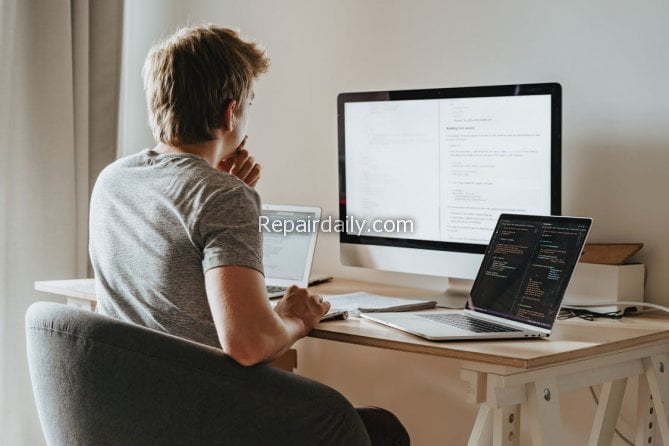

Sudden computer shutdowns can interrupt work, damage hardware, and put important data at risk. Many users experience this problem without understanding why it happens. In most cases, shutdowns are not random failures. They are safety responses triggered by heat, power issues, software conflicts, or hardware stress. These problems usually develop slowly and give warning signs that are easy to miss. Ignoring early symptoms leads to repeated shutdowns and higher repair costs. Good computer care is not complicated, but it does require consistency. Simple maintenance habits can significantly improve stability and extend the life of your system.
Whether you use your computer for work, study, or daily tasks, following basic repair and prevention practices helps avoid sudden shutdowns. The tips below explain common causes and practical steps you can take to keep your system running reliably.
1. Keep Your System Cool With Proper Airflow and Placement
Overheating is one of the leading reasons computers shut down unexpectedly. Modern systems are designed to power off automatically when temperatures reach unsafe levels. This protects the processor, motherboard, and internal components from permanent damage. Poor airflow is a common cause of overheating. Laptops placed on beds, couches, or soft surfaces trap heat. Desktops pushed against walls block ventilation. Always place your system on a hard, flat surface with clear airflow around vents. Use cooling pads for laptops if needed. Keeping temperatures stable reduces shutdowns and improves overall performance.
2. Clean Internal Dust and Dirt on a Regular Schedule
Dust buildup inside a computer slowly restricts airflow and traps heat. Over time, fans work harder but cool less effectively. This leads to frequent overheating and shutdowns. Many users clean the outside of their devices but ignore the inside. Internal cleaning should be done every few months, especially in dusty environments. Desktops collect dust faster, but laptops are also affected. If you are not comfortable opening your system, professional cleaning is recommended. Many cases handled during computer repair in Aventura, FL involve shutdowns caused by dust accumulation that went untreated for too long.
3. Inspect Power Cables, Adapters, and Battery Condition
Power-related issues are another major cause of sudden shutdowns. Loose power cables, damaged chargers, or faulty outlets can interrupt power flow instantly. For laptops, aging batteries may shut the system down even when the charger is connected. Batteries lose capacity over time and may fail without warning. Test your system using different outlets and chargers to rule out external power issues. If shutdowns stop when the battery is removed or replaced, battery failure is likely the cause. Stable power supply is essential for reliable operation.
4. Keep Operating System and Drivers Fully Updated
Outdated operating systems and drivers can cause serious instability. Drivers control how hardware components communicate with the system. When drivers are outdated or incompatible, errors occur. These errors can trigger shutdowns, especially during heavy tasks. Operating system updates often include fixes for power management, overheating protection, and system bugs. Delaying updates increases the risk of crashes. Always use official updates from trusted sources. Avoid third-party driver installers, as they often introduce more problems than they solve.
5. Protect Your System From Malware and Corrupt Software
Malware and corrupted software files can overload system resources and cause forced shutdowns. Some malicious programs push the processor to unsafe levels, triggering thermal protection. Others damage system files, leading to crashes. Install reputable security software and run full scans regularly. Be cautious with downloads and email attachments. If shutdowns began after installing new software, remove it and observe system behavior. Clean software environments are just as important as clean hardware for system stability.
6. Monitor Hardware Health and Warning Signs Carefully
Failing hardware components often show early warning signs before complete failure. Random freezes, blue screen errors, strange noises, and performance drops indicate potential problems. Hard drives, RAM, and graphics cards are common culprits. Diagnostic tools can check temperature levels, drive health, and memory errors. Ignoring these warnings leads to sudden shutdowns and possible data loss. Regular monitoring allows repairs before damage spreads to other components. Preventive checks save time and money.
7. Avoid Overloading the System With Heavy Tasks
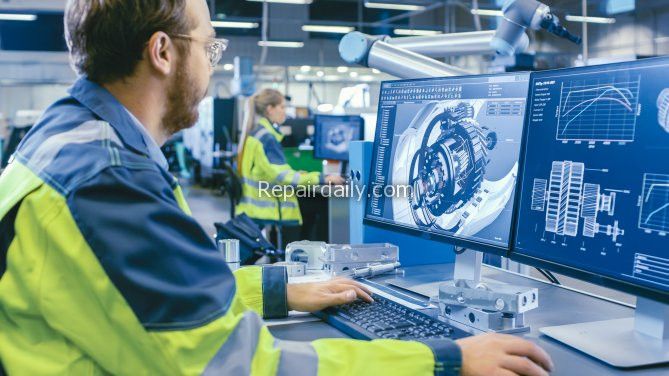
Running demanding software on systems not designed for it creates stress. High CPU and memory usage increase heat and power consumption. This can force the system to shut down for protection. Close unused programs and background processes. Avoid multitasking beyond your system’s capacity. Older systems need lighter workloads. Upgrading RAM or storage can improve stability, but overloading a weak system repeatedly shortens its lifespan and increases shutdown frequency.
8. Use Quality Surge Protectors and Stable Power Sources
Power surges and voltage fluctuations can damage internal components and cause shutdowns. Sudden power changes confuse the power supply and motherboard. Using a high-quality surge protector adds a layer of protection. In areas with unstable electricity, this is critical. Avoid cheap power strips that offer no real protection. Many shutdown-related repairs handled under electronics repair in West Hialeah, FL are linked to electrical damage that could have been prevented with proper surge protection.
9. Review Power Settings and Thermal Management Options
Incorrect power management settings can cause unnecessary shutdowns. Some systems are set to shut down aggressively to save power or reduce heat. Review your power plans and adjust settings based on your usage. Balanced settings usually provide the best stability. Advanced users can check thermal thresholds in system BIOS or software utilities. Proper configuration ensures the system manages heat and power without overreacting.
10. Act Early When Problems Appear
Most sudden shutdowns are not truly sudden. Warning signs appear first. These include overheating, loud fan noise, slow performance, frequent restarts, and error messages. Ignoring these signs allows problems to grow. Acting early prevents major hardware failure. Regular inspections, timely cleaning, and quick repairs protect your system. Waiting until the system fails increases downtime and repair costs. Prevention is always easier than recovery.
Final Thoughts
Sudden system shutdowns are usually the result of neglect, not bad luck. Heat, power instability, outdated software, and hardware stress are the most common causes. Simple maintenance habits greatly reduce these risks. Clean your system, manage power properly, update software, and pay attention to warning signs. Computers are machines that require care, just like any other tool. Consistent attention keeps them reliable, efficient, and productive. By following these repair tips, you protect your system from unexpected shutdowns and extend its usable life.
